

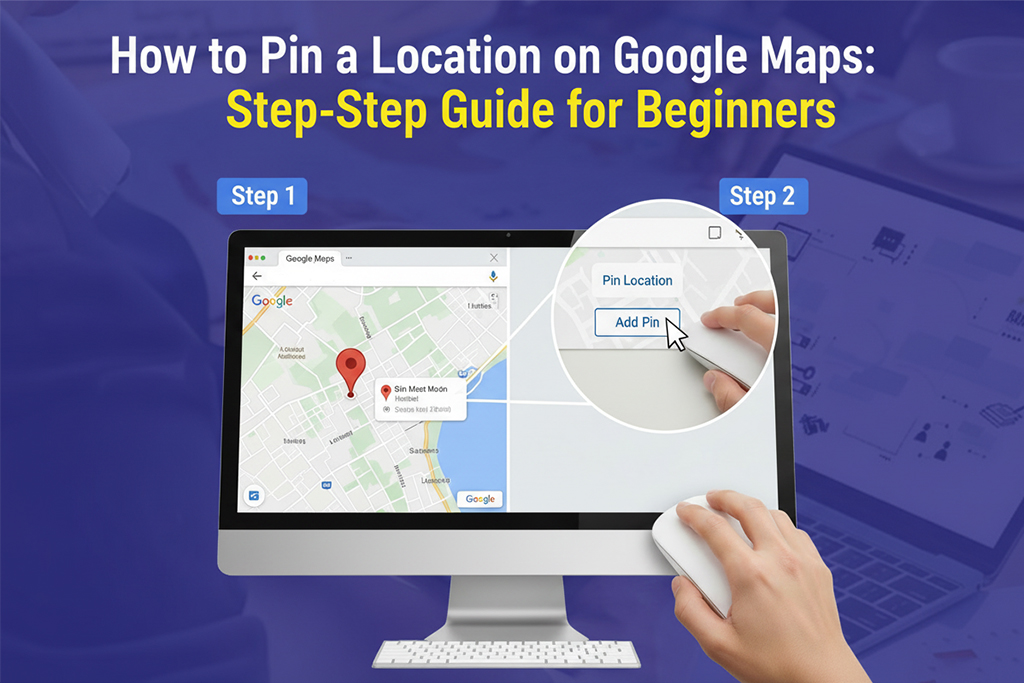
Need to find a spot that doesn’t have a clear address? Want to share a hidden café with your friends or remember the perfect picnic spot? Learning how to pin a location on Google Maps makes it easy to save, share, and revisit any place—even if it’s just a dot in the middle of the park.
When you “drop a pin” on Google Maps, you mark an exact point. This dropped pin turns into a handy location you can save, share, or use for directions. This guide will walk you through how to drop a pin on Google Maps using your mobile phone (iPhone or Android) and desktop. You’ll also learn how to save and share pins, plus some helpful tricks for power users. Let’s get started.
How to Pin a Location on Google Maps Using Mobile Devices

Photo by GeoJango Maps
Pinning a location with your phone is simple. This works for both Android and iPhone (iOS). Here’s how you can do it:
- Open the Google Maps app (free on the App Store and Google Play).
- Find the place on the map. You can type an address or drag your finger to explore.
- Press and hold on the spot where you want to drop your pin. A red pin appears.
- An info card shows up at the bottom of your screen. Tap it for more options.
You can now:
- Save the location for later.
- Share the pin via link, text, or email.
- Get directions to that exact spot.
How to Drop a Pin on Google Maps for iPhone
iPhone users can follow these clear steps:
- Open the Google Maps app.
- Search for a location or zoom in to where you want to pin.
- Tap and hold on the point—you’ll see a red pin drop.
- The address or place details appear at the bottom. Tap this card for actions like “Save” or “Share”.
On iPhone, you can also:
- Tap “Label” to name your pin for easy recall.
- Use the “Directions” button for direct navigation from your current spot.
How to Drop a Pin on Google Maps for Android
For Android users, the steps are very similar with some small layout changes:
- Open your Google Maps app.
- Zoom in or out to lock in on the spot you want.
- Press and hold anywhere—your dropped pin will show up instantly.
- The details card appears. From here, tap “Save” or “Share”.
Android usually places action buttons (save, share, label) right under the address. You can send pins by link, message, or email with a single tap. For more details on the process, the Google Maps help forum gives a handy summary with visuals: How do I create a pin location to direct others to my location.
How to Pin a Location on Google Maps Using Desktop
Dropping a pin on the Google Maps website is just as easy.
- Go to Google Maps in your browser.
- Find the spot by searching or clicking and dragging.
- Click once on the exact point with your left mouse button.
- A grey circle or red pin will appear.
When you click the map, an information box pops up at the bottom. Here you can:
- Save the location if you’re logged into your Google account.
- Get directions from your current spot or another address.
- Share the location using the share button (a link or social media).
TIP: Use desktops for planning trips or events because you can see more of the map and use features like My Maps for advanced pinning. If you’re interested in how businesses use map pins for better visibility, check out the article on GMB full form in digital marketing.
How to Save and Share a Dropped Pin
Once you drop a pin, you’ll want to save or share it for future use.
Saving a Pin
- On mobile, after dropping the pin, tap the “Save” button. Select a list (Favorites, Want to Go, Starred Places) or create your own.
- On desktop, click the “Save” option in the info box.
Your saved pins are stored in “Your Places,” which you access from the side menu (three lines on mobile). It helps you quickly get back to saved spots, especially when planning events or business visits.
Sharing a Pin
- After dropping your pin, tap or click “Share.”
- You can send the pin as a link through text, email, or any app you use—this works on both mobile and desktop.
- Copy the map link or send it right from Google Maps.
Event planners and business professionals find it helpful for sending directions to clients and guests. For more on how location sharing helps with local business promotion, go through the insights in the Surat SEO company guide. For a community discussion on the best way to save your pins, check out this helpful thread on saving map pins.
Advanced Tips for Google Maps Pins
Want to do more with your pins? Here are some practical tips:
- Drop multiple pins using Google’s My Maps tool. This lets you create a custom map with many pins for planning trips, events, or delivery routes. Learn how to add places to your own custom map.
- Measure distance by clicking between pins—a useful trick for runners and cyclists.
- Organize pins into lists for easy travel planning or sharing with friends.
For businesses, managing and optimizing pinned locations means visitors find you faster. Custom lists and labels keep things tidy. If you’re curious about marking more than one spot at once, check the technique on how to pin point multiple locations.
Frequently Asked Questions About Dropping Pins
- How do I remove a pin?
- On mobile, tap the pin, then tap “Remove” or select another spot to drop a new pin.
- On desktop, click anywhere else to clear the old pin.
- Can I rename or categorize my pins?
- Yes—use the “Label” feature after dropping a pin to add a custom name.
- Saved pins can be grouped into custom lists like “Favorites” or “Work”.
- What if my pin lands in the wrong place?
- Just tap or click the correct spot. The pin will move instantly.
Device layout may change where you find features, but the process stays almost the same on Android and iPhone. My Maps is available only on desktop. For step-by-step answers and discussion, the Google Maps Help community is a reliable source. Read a helpful tutorial on dropping and saving pins.
Conclusion
Dropping a pin on Google Maps is simple and practical. You can mark any spot, save it for future visits, and share it with friends, family, or coworkers. This tool is perfect for travelers, business owners, and anyone who needs a clear way to share a meeting point. Try these steps next time you discover a hidden gem or need to guide someone to a tricky location. Want to learn more about managing business locations on Google Maps? Don’t miss out on tips from GMB full form in digital marketing and expert advice from the Surat SEO company. Pin smarter, travel easier, and never lose track of your favorite places again.
